Mobile Device Management Policy Best Practices
Use the least-privileged enrollment type, require strong screen locks and encryption, keep OS versions current, separate work data, document remote-wipe rules, and review exceptions regularly.
MDM can enforce passcodes, encryption, app rules, network settings, and remote actions on work or school devices. This guide explains what administrators can see, how to verify management, how legitimate removal works, and where app locks, secure folders, encrypted vaults, and USB security keys fit.
Mobile device management is an administrative control layer used to apply security policies to enrolled phones, tablets, and computers. You can usually check enrollment in the device management settings. Removal must be performed by the owner or authorized administrator, and supervised or organization-owned devices may require the organization to release them. MDM is not a replacement for app-level privacy or encrypted storage.
An MDM service connects a management console to enrolled devices. The organization defines policies, and a platform service on the device applies them.
Depending on ownership and enrollment type, those policies can require a screen lock, enforce storage encryption, install work apps, configure Wi-Fi or VPN settings, restrict data sharing, report compliance status, or remotely lock and erase work data. On a personally owned device with a separate work profile, management is normally focused on the work container rather than the personal side.
MDM does not automatically hide personal photos, lock an individual banking app, or encrypt a private folder with a separate password. Those needs are handled by native secure folders, app locks, parental controls, or dedicated encrypted vault software.

On a fully managed corporate device, the organization can apply broad controls because it owns the device. On a bring-your-own-device setup, modern platforms can separate work and personal data. An Android Work Profile, for example, isolates work apps and data while leaving personal apps outside the managed container.
Before enrolling, read the disclosure shown by the operating system. It explains which controls the organization may use. If the device is personal, ask whether a work profile or user enrollment option is available instead of full-device management.
Use the least-privileged enrollment type, require strong screen locks and encryption, keep OS versions current, separate work data, document remote-wipe rules, and review exceptions regularly.
The device's secure hardware, such as a Secure Enclave, Trusted Execution Environment, or hardware-backed keystore, protects encryption keys. MDM configures policy but does not replace that hardware.
Use the operating system's hardware-backed full-disk or file-based encryption, managed through supported platform controls. For separate private files, use a reputable vault that applies modern authenticated encryption.
Do not try to bypass management. Review the enrollment disclosure and ask IT whether the device is fully managed or uses a separate work profile. For removal, follow the organization's offboarding process.
See safe removal paths →Native controls should form the base layer because they are integrated with the operating system and hardware-backed key storage.
Every user, every device, and every organization. This is the minimum security layer.
A device screen lock does not stop someone from opening a sensitive app after you hand them an already unlocked phone.
Check the device settings, look for a work profile or management disclosure, and confirm which organization enrolled the device.
0 of 5 checks completed
Yes, when the device owner or authorized administrator follows the supported unenrollment path. Some supervised or organization-owned devices cannot be released by the user alone.
If the profile is user-removable, open Settings, General, VPN & Device Management, select the profile, and use Remove Management or Delete Profile. You may need the device passcode or a removal password. If the control is unavailable, the device may be supervised or require administrator removal.
For a personal device with a removable Work Profile, use the work profile settings to remove the profile and its work data. For a fully managed or company-owned device, contact the administrator to retire or unenroll it from the management console.
Ask the seller or previous organization to remove the device from its management and automated enrollment records. Keep the purchase receipt and device identifiers. If the seller cannot release it, return the device. Factory reset alone may not remove automated enrollment.
Offboarding, personal-device work profile removal, school graduation, device resale, or correcting accidental enrollment.
A supervised device, locked enrollment, organization-owned device, or device assigned through automated enrollment may require server-side release.
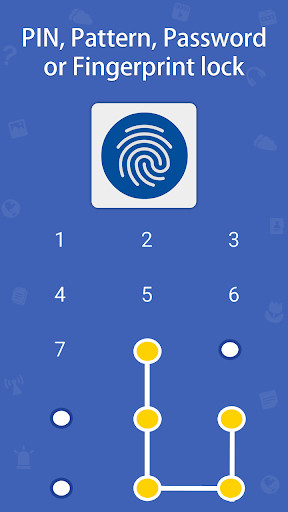
App locks protect selected apps after the phone is already unlocked. They are a privacy layer, not a substitute for device encryption, MDM policy, or account security.
The score reflects everyday privacy, not formal certification.
| Method | Strength | Weak point | Best for | Recommendation |
|---|---|---|---|---|
| Biometric | Fast, not easily observed | Depends on fallback credential | Frequent daily access | Use with a strong PIN or password |
| PIN | Reliable and widely supported | Can be observed or guessed if short | Balanced privacy | Use 6 or more non-obvious digits |
| Pattern | Quick and memorable | Easy to observe and trace | Low-risk convenience | Avoid simple shapes |
| Password | Highest potential entropy | Slow on a phone | High-sensitivity vaults | Use a unique passphrase |
Many app locks require the device passcode or app master credential after restart before biometrics work again. Some third-party locks may not protect apps until the operating system has fully loaded required permissions.
Updates can reset background, accessibility, overlay, or battery permissions. Test every protected app after updating and check notifications, recents, split screen, and deep links.
An app lock may block the main app while notifications or recent-app thumbnails still expose information. Hide sensitive notification previews separately.
Use the strongest biometric class available and keep a strong fallback credential. For high-sensitivity data, require the master password periodically or after restart.
| Option | What it protects | Separate encryption or container | Can hide apps | Works across brands | Best use |
|---|---|---|---|---|---|
| Built-in and dedicated privacy layers | |||||
| Regular folder | Organization only | No | No | Yes | Non-sensitive files |
| Phone screen lock | Whole device while locked | Device encryption | No | Yes | Baseline security |
| Samsung Secure Folder | Apps, files, and accounts inside a Samsung container | Yes, hardware-backed Knox environment | Yes | No | Strong native privacy on compatible Galaxy devices |
| Third-party app lock | Selected app launch | Usually no separate app-data encryption | Sometimes | Mainly Android | Casual access prevention |
| Encrypted vault app | Imported photos, videos, documents, notes, and credentials | Yes, when implemented correctly | May include app locking | Varies | Private files needing a separate vault |
| Verdict | Use Samsung Secure Folder on a compatible Galaxy device for a native container. Use a reputable encrypted vault for cross-device file protection or features beyond the native container. | ||||
Use the app's documented stealth or icon-hiding option only if it preserves recovery access. Removing an icon is not a security control by itself because installed apps can still be found through system settings.
We do not recommend it as a substitute for MDM. It cannot enroll a fleet, enforce organization-wide compliance, deploy work apps, apply conditional access, or remotely retire employee devices. Folder Protect is also a separate Windows access-control product rather than an encrypted mobile vault.
The fit changes by operating system. Android combines a protected vault with an app-launch gate. The iPhone and iPad edition focuses on vault content, local transfer over Wi-Fi, cloud workflows, and attempt monitoring. Windows and macOS add local and cloud lockers, while the Windows edition has the broadest set of portable and file-management tools.
Folder Lock is useful after the device policy layer is already in place. It gives an individual user a separate space for private media, documents, notes, credentials, and other records that should not remain exposed in ordinary apps or folders.

248 files protected
Banking, gallery, and messages selected
Recovery details saved separately
The product family shares an encrypted-vault idea, but the available tools are not identical. Choose the edition by the device and the job instead of assuming the Windows, Mac, Android, and iPhone apps behave the same way.
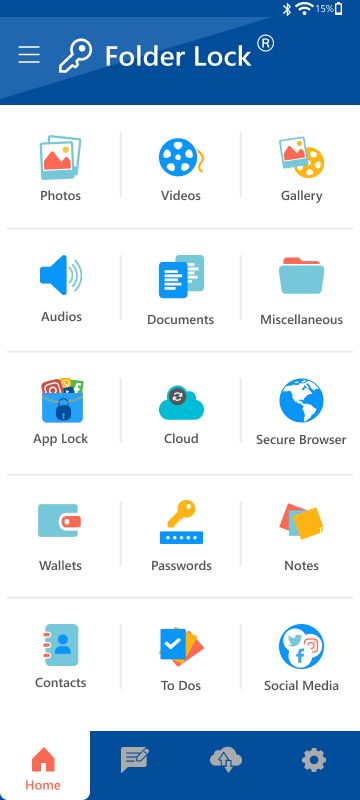
Best for people who want one protected area for media, documents, audio, notes, wallet records, and passwords, plus a second prompt before selected apps can open.
Watch for: Android updates, battery controls, or revoked special access can interrupt app locking even when the encrypted vault remains available.
Best for private photos, video, documents, audio, notes, and financial records when the user also wants to move files between the Apple device and a computer without relying only on a cable or cloud service.
Watch for: Use iOS app-specific locks or the operating system's own app-hiding and Face ID controls when the goal is to restrict another installed app.

Best for encrypted local folders, protected cloud-synced storage, portable lockers, selected sharing, file hiding, secure deletion, and removal of local activity traces.
Watch for: A desktop locker protects files placed in its managed location. It does not turn the Windows PC into a managed endpoint or apply policy to employee phones.

Best for Mac users who need an encrypted desktop location, protected cloud folders, cross-device synchronization, and controlled sharing inside the Folder Lock ecosystem.
Watch for: Cloud availability still depends on the selected provider, the user's account, network access, and a correctly configured locker.
| Capability | Android | iPhone/iPad | Windows | macOS |
|---|---|---|---|---|
| Protected media and documents | Yes | Yes | Through lockers | Through lockers |
| Notes and wallet-style records | Yes | Yes | Secrets area | Pro Secrets area |
| Lock other installed apps | Yes, with Android system access | Not listed in supplied product material | Not the desktop product's purpose | Not the desktop product's purpose |
| Wi-Fi transfer to a computer | Not highlighted | Yes | Computer endpoint | Computer endpoint |
| Local encrypted locker | Mobile vault | Mobile vault | Desktop Locker | Desktop Locker |
| Dropbox, Google Drive, OneDrive lockers | Backup and sync support | Backup and sync support | Dedicated cloud lockers | Dedicated cloud lockers |
| Portable encrypted locker | Not a mobile workflow | Not a mobile workflow | Pro feature | Not highlighted in supplied Mac material |
| MDM enrollment and compliance | No | No | No | No |
The useful features are the ones that protect a specific data path. Each item below includes the boundary that should be understood before relying on it.
The mobile apps organize imported photos, video, documents, audio, notes, and wallet-style records inside the application's protected area. Desktop editions use local or cloud-connected lockers. This is stronger than moving files into an ordinary hidden folder, but only content added to the protected location receives the vault's protection.
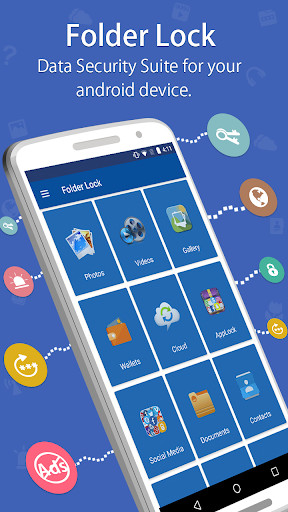
The Android edition can place a PIN or master-credential prompt in front of selected apps. It may need special Android access to detect launches and display the blocking screen. Review those permissions after major OS updates and test behavior after a restart.
The iPhone and iPad material emphasizes moving vault files between the mobile device and a computer over a trusted local network. It does not describe an iOS-wide feature for placing Folder Lock in front of every other app, so app-specific or native iOS controls remain necessary.
Windows and Mac users can keep data in a local desktop locker or use lockers associated with Dropbox, Google Drive, and OneDrive. Turning synchronization off keeps data in the local locker. Turning it on adds the cloud provider and account to the availability and recovery chain.
The desktop product can give approved recipients their own access credentials instead of passing around the owner's password. The receiving person still needs compatible Folder Lock software, so it is not a universal encrypted-link service.
Mobile editions can record failed unlock activity, with the exact evidence depending on platform permissions. The built-in browser is designed not to retain its own cookie and history trail, but it does not make the network connection anonymous or replace phishing protection.
Account or application-password recovery is not the same as recovering every independent encrypted locker. Older locker documentation warns that a forgotten locker password may be unrecoverable. Create a small test locker, record the exact recovery route for the installed version, and keep an independent backup before deleting originals.
| Method | Difficulty | Security | Cost | Best for | Limitations |
|---|---|---|---|---|---|
| Device and policy controls | |||||
| Phone screen lock | Easy | High baseline | Free | Lost or unattended device | No protection after you unlock and hand over the phone |
| MDM | Admin setup | High for policy enforcement | Usually business-paid | Corporate compliance and remote actions | Not a personal private vault |
| Parental controls | Easy to moderate | Policy-based | Often built in | Child accounts, time and content limits | Not designed to encrypt private files |
| App and file privacy | |||||
| Native secure folder | Easy | Strong on supported devices | Free | Separate apps and files | Platform or brand limited |
| Third-party app lock | Easy | Moderate | Free or paid | Casual app access prevention | Permission and reliability vary |
| Folder Lock vault | Easy to moderate | Strong for imported private files | Free and paid options | Cross-device private storage | Not an MDM platform |
| Verdict | For most people, use all three layers: strong device lock, platform security or MDM where appropriate, and a separate secure folder or encrypted vault for especially sensitive files and apps. | ||||

Android, iOS, Windows, or Mac
Document before import
Only feature-required permissions
Prove restore before deletion
MDM can configure security settings, distribute work apps, check compliance, and trigger remote actions. Exact reach depends on platform, ownership, enrollment, and administrator policy.
Modern mobile operating systems protect encryption keys through secure hardware and tie access to the device credential. MDM can require or verify encryption, but the operating system and secure hardware perform it.
Containers separate data and apps. Android Work Profile separates work from personal use, while Samsung Secure Folder creates a private Samsung container. They solve different management and privacy problems.
An app lock controls entry to selected apps. An encrypted vault protects items imported into its own storage. A product can provide both, but the security properties are not identical.
A FIDO2 security key is a purpose-built authenticator. A normal USB flash drive is storage. Windows can use a flash drive for a BitLocker startup key, but that does not turn it into a FIDO2 authenticator.
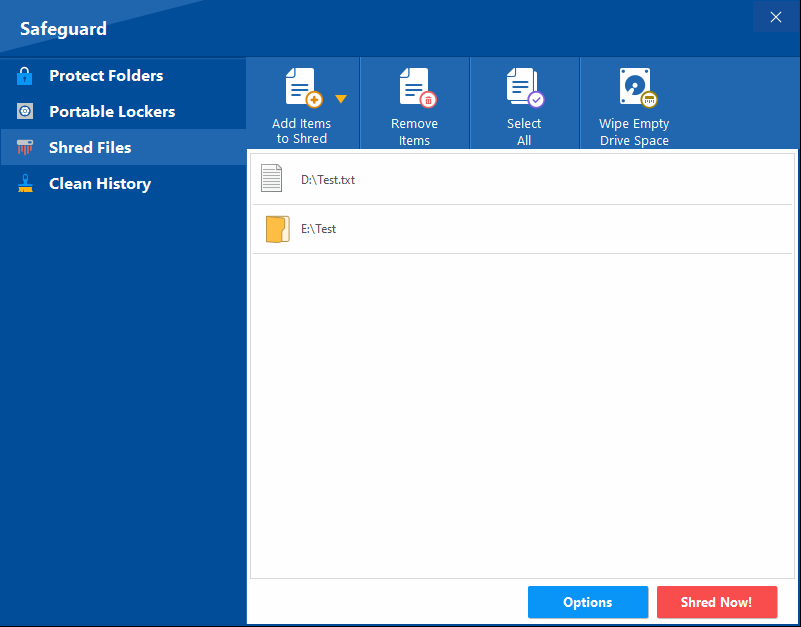
None of these products enrolls a company fleet, pushes device configuration, evaluates compliance, deploys managed work apps, applies conditional access, or performs administrator-led selective wipe.
Android has the app-launch gate. The iPhone edition highlights Wi-Fi transfer instead. Windows provides the widest portable and cleanup toolset. The Mac edition requires a current macOS release and has its own plan limits.
A cloud locker remains dependent on the selected provider, the user's provider account, available storage, network access, and correct synchronization settings. Keep a separate recovery plan.
An Android launch prompt can discourage casual access, but it is not the same as a hardware-backed work profile or Samsung Secure Folder. Notifications, previews, deep links, and update behavior still need testing.
Folder Protect is a Windows product for making items unavailable, hidden, resistant to changes, or resistant to deletion. It can also protect programs and file-type patterns. It should not be described as an encrypted mobile vault.
The supplied Lite material describes a smaller Windows edition centered on locking and hiding folders without the encryption features of the full Folder Lock product. It is not suitable where encrypted-at-rest storage is required.
A recovered account or app password does not guarantee recovery of an independently encrypted container. Verify the behavior of the installed version, retain recovery material, and keep a separate backup.
A browser that avoids retaining its own local history can reduce traces on the device. It does not hide traffic from the network, prevent account tracking, or replace a trusted browser with anti-phishing protection.
| Enrollment model | Typical ownership | Management reach | Personal privacy | Removal path |
|---|---|---|---|---|
| User or account-focused enrollment | Personal device | Managed work apps, accounts, and data | Strong separation expected | User unenrollment or admin offboarding |
| Android Work Profile | Personal or company-owned | Work container policies | Personal profile remains separate | Remove work profile when permitted |
| Device enrollment | Company or school device | Broader device settings and apps | Limited personal-use expectation | Administrator retirement or supported removal |
| Supervised or fully managed | Organization-owned | Strongest restrictions and remote control | Treat as organizational | Organization must release or unenroll |
| Dedicated or kiosk | Organization-owned | Locked to approved apps | Not intended for personal use | Administrator only |

Match control depth to ownership. Use a work container for BYOD and full management for organization-owned devices.
Require a strong screen lock, supported OS version, encryption, secure boot where available, and automatic updates.
Block unmanaged app sharing only where needed. Document screenshot, clipboard, backup, and file-transfer restrictions.
Grant access based on identity, compliance, risk, and application context instead of trusting enrollment alone.
Define when to lock, selectively wipe work data, fully erase corporate devices, revoke tokens, and preserve evidence.
Tell users what is collected, retain only necessary telemetry, review exemptions, and audit high-privilege administrators.
For laptops, the broader category is unified endpoint management or endpoint management rather than mobile-only MDM. A central policy service configures encryption, firewall, updates, application controls, identity, and compliance. Mobile and desktop policies should share a common baseline while accounting for platform differences.
Version-control access should rely on managed identities, phishing-resistant multifactor authentication, least privilege, protected branches, signed commits where appropriate, secret scanning, and rapid credential revocation. MDM helps establish device posture, but repository controls remain necessary.
Banking apps already use account authentication, device binding, session timeouts, and fraud controls. Add a device-level screen lock first, then enable the banking app's own biometric login and transaction alerts. A separate app lock can reduce casual access when you lend an unlocked phone, but it should not interfere with the bank app's controls.
Parental controls are usually better than a generic app lock for child devices because they can apply age restrictions, time limits, purchase approval, content filters, location sharing, and downtime through a managed child account.
A parental-control PIN should differ from the child's device passcode. Explain the rules openly when age-appropriate rather than relying only on hidden monitoring.

A normal USB flash drive cannot simply be converted into a FIDO2 security key. A FIDO security key contains purpose-built cryptographic hardware and firmware. Windows can store a BitLocker startup key on a USB flash drive, but that is a different function.
| USB use | What it does | Can a regular flash drive do it? | Security note |
|---|---|---|---|
| FIDO2 security key | Phishing-resistant sign-in and multifactor authentication | No, use certified authenticator hardware | Private keys remain in the authenticator |
| BitLocker startup key | Stores a startup key file used during Windows boot | Yes, when configured through supported BitLocker policy | Protect the USB and keep a separate recovery key |
| Encrypted USB storage | Protects files on a removable drive | Yes, with supported encryption software or encrypted hardware | Encryption quality and recovery planning matter |
| USB device control | Allows, blocks, or audits removable devices | Managed by endpoint software, not the drive alone | Use device IDs, policy, and event logs |
On supported Windows editions, administrators can configure BitLocker to use a startup key stored on a USB flash drive. Follow Microsoft documentation and organizational policy. This is not the same as creating a Microsoft account security key, and it does not make the drive FIDO2-capable.
Security event 6416 can record recognition of a new external device when the relevant audit policy is enabled. Enterprise teams can combine device-control policy, inventory, endpoint detection, and log review to identify unauthorized USB use.
Physical port blockers can reduce casual access, but they should support, not replace, endpoint policy. Business controls should define allowed device classes, exception approval, write access, and encrypted-drive handling.
| Capability | MDM platform | Samsung Secure Folder | Basic app lock | Folder Lock |
|---|---|---|---|---|
| Enforce fleet policy | Primary purpose | Not supported | Not supported | Not supported |
| Separate work and personal data | Supported by enrollment model | Private Samsung container | Usually no | Private vault, not work policy |
| Lock selected apps | Can restrict or configure apps | Apps can be installed inside container | Primary purpose | Supported on Android product |
| Encrypt private imported files | Relies on OS and managed apps | Inside Secure Folder | Usually not | Primary privacy use |
| Cross-platform private vault | Vendor-dependent work apps | No | Usually no | Mobile and desktop product family |
| Best fit | Organizations | Samsung owners | Casual app privacy | Private files and vault workflows |
| Verdict | Do not select one tool for every job. Use MDM for governance, secure containers for isolation, app locks for casual access control, and encrypted vaults for sensitive personal files. | |||
The supplied product pages list a free option and a Pro price of $39.95, but the plan details are not identical on every platform page and the billing term is not stated consistently in the research. Treat the figures below as the published comparison snapshot and confirm the current checkout or in-app offer before purchase.
| Edition | Free snapshot | Pro snapshot | Important interpretation |
|---|---|---|---|
| Windows | 1 GB locker allowance, 2 synced devices, mobile apps and Secrets listed | Unlimited locker allowance, 5 devices, sharing, portable lockers, and folder protection listed | The comparison lists $0 and $39.95. Secure deletion and history cleaning appear in both columns. |
| macOS 13+ | 1 GB each for the desktop and three named cloud lockers, 2 synced devices, no sharing or Secrets in the chart | Unlimited locker allowances, 5 synced devices, sharing, and Secrets | Both desktop and mobile companion apps are listed for each plan. |
| Android | 1 GB and 2-device limits are shown | Unlimited locker size and 5-device limit are shown | The mobile page reuses several desktop-oriented rows. Confirm which paid features are delivered by the Android app itself. |
| iPhone and iPad | 1 GB and 2-device limits are shown | Unlimited locker size and 5-device limit are shown | The iOS feature list highlights Wi-Fi transfer rather than Android-style app locking. |
| Folder Protect | Evaluation or trial language is used | Separate Windows license | This is a different product for access restrictions, not an upgrade tier for the mobile vault. |
| Folder Lock Lite | Reduced legacy feature set | Separate legacy purchase path in the supplied material | Locking and hiding are emphasized; encryption is specifically excluded from the Lite description. |
Use copies of non-critical files to test login, import, restart behavior, recovery, and restore. Do not remove original files until the complete recovery route has been proved.
View official downloads →Recommended: Work Profile or user-focused enrollment, strong device lock, and a separate personal vault if needed. Alternative: A company-owned device when policy requires full control.
Recommended: Built-in family and parental controls. Alternative: App lock only for a few adult-owned apps on a shared device.
Recommended: Samsung Secure Folder. Alternative: Folder Lock when cross-platform vault features are more important.
Recommended: MDM or unified endpoint management with least-privilege enrollment, conditional access, and documented offboarding. Folder Lock can protect selected files but is not the management platform.
Recommended: A consistent encrypted vault and portable-storage strategy. Use Folder Lock for file vault workflows, USB Secure for protected USB data, and a real FIDO2 key for account authentication.
The following are composite scenarios, not customer testimonials.
“A consultant separates client work in a managed work profile, keeps personal documents in an encrypted vault, and can remove company access without erasing family photos.”
“A parent uses a child account for app limits and purchase approval instead of hiding a generic app lock the child can disable.”
“A Samsung owner uses Secure Folder for a second copy of finance and messaging apps, then hides notification previews outside the container.”
“A small business uses MDM for encryption and remote wipe, while staff store particularly sensitive files inside approved encrypted applications.”
These tools are developed by NewSoftwares.net, the same team behind Folder Lock. Each addresses a different layer.
MDM is a system for enrolling devices, applying configuration and security policy, distributing work apps, checking compliance, and performing authorized remote actions such as lock or wipe.
An administrator defines policy in a management console. A platform management service on the enrolled device receives and applies supported commands. Capability depends on ownership, platform, enrollment, and policy.
MDM is a standard enterprise security approach when configured transparently and with least privilege. Risk increases when organizations over-collect data, use full management on personal devices without need, or fail to protect administrator accounts.
A removable profile can be deleted in Settings, General, VPN & Device Management. A supervised or locked profile may require the administrator to unenroll or release the device.
Yes, through authorized unenrollment, administrator retirement, seller release, or supported owner recovery. Factory reset may not remove automated enrollment assignment.
Start with the phone maker's built-in private space, secure folder, or app lock when available. For a third-party app, choose one from the official store with limited permissions, clear recovery, recent maintenance, and transparent privacy practices.
Some apps provide their own Face ID or passcode lock. Current iOS versions may also offer system options to require Face ID or hide an app on supported devices. Availability varies by version and app.
The app asks the operating system to verify an enrolled biometric. The app normally receives a success or failure result, not the fingerprint image. A device or app credential remains the fallback.
Biometrics are convenient and hard to observe, while a strong PIN or password is essential as the fallback. The best setup combines strong hardware-backed biometrics with a non-obvious credential.
Secure Folder creates a separate protected container for apps, accounts, and files. A basic app lock usually adds an authentication gate before opening an existing app without creating a separate container.
A well-designed lock should protect apps after restart, but third-party behavior varies. Test it. The device passcode often becomes mandatory before biometrics work, and some apps need background permissions restored.
Use the product's official recovery option, linked account, saved recovery key, license email, or vendor support. Do not use tools that promise to crack or extract credentials.
A USB security key is usually a purpose-built FIDO authenticator that proves possession of a cryptographic key during sign-in. It can provide phishing-resistant multifactor or passwordless authentication.
No for FIDO2 authentication. A standard flash drive lacks the required authenticator hardware and firmware. It may be used for a supported BitLocker startup key, which is a different function.
Use the registered hardware key that matches the port or an approved adapter. Insert it when prompted, then touch or unlock the key if required. If you do not own the registered key, use the provider's recovery process.
The phone or tablet's secure hardware and operating-system keystore protect encryption keys. MDM enforces policy and checks compliance, while the device performs encryption.
Use supported hardware-backed full-disk or file-based encryption built into the platform, plus modern encrypted application containers for data that needs additional separation.
No. Folder Lock protects selected private data and, on Android, can gate selected apps. It does not enroll devices, enforce corporate configuration, distribute managed apps, measure compliance, or perform administrator-controlled wipe.
The supplied Android material lists an App Locker, while the iPhone material highlights Wi-Fi transfer instead. On iPhone, use the operating system's app-hiding or Face ID controls, Screen Time where appropriate, or an app's own authentication setting.
Photo, media, camera, notification, or broad file access may be requested depending on the feature. App locking may also require a special system permission so the blocking prompt can appear when another app launches. Grant only what you use and review access after updates.
Folder Lock centers on encrypted lockers, mobile vault content, cloud-connected lockers, and related privacy tools. Folder Protect is a Windows access-control utility that can hide items or prevent opening, editing, or deleting them. Folder Protect should not be presented as encrypted mobile storage.
The supplied Lite description says the reduced edition provides folder locking but omits the encryption features. Use the full encrypted-locker product when protection at rest is required.
The supplied sharing documentation says the recipient needs Folder Lock and the required credential to open the protected item. Plan the recipient workflow before using it for collaboration.
Recovery depends on the edition, account, and type of locker. Older locker documentation warns that an independent locker password may not be recoverable. Test recovery with a non-critical locker and keep a separate backup.
The supplied comparisons commonly show 1 GB and 2 synced devices for Free, with unlimited locker capacity and 5 devices for Pro. Mac, Windows, Android, and iPhone tables differ in feature rows, so verify the current platform-specific checkout.
They can scan for risky apps, block malicious links, protect network traffic, lock private content, or report device posture. No single app covers every layer. Evaluate permissions, update history, recovery, data handling, and platform integration.
A screen lock protects encryption keys, prevents casual access, and enables lost-device locking. Longer credentials improve resistance to guessing. Biometrics improve usability but do not remove the need for a strong fallback.
Use a strong passcode, enable device finding and remote lock, keep account recovery secure, hide notification content, record the device serial, avoid unattended charging points, and report theft quickly.
Use the phone maker's built-in secure folder, private space, locked folder, or gallery protection where available. Confirm whether media is separately encrypted, excluded from cloud backup, and removed from the ordinary gallery.
Begin with inventory, supported OS versions, strong identity, encryption, selective wipe, work-data separation, incident response, and documented offboarding. Add MDM when manual management no longer provides consistent enforcement.
Use conditional access, managed applications, certificate-based network access, phishing-resistant authentication, data-loss rules, mobile threat signals, and clear privacy disclosures. Test policy changes before broad deployment.
The myth is that modern phones are automatically secure because they use sandboxing and encryption. Those controls are strong, but outdated software, stolen credentials, risky permissions, phishing, unmanaged backups, and poor recovery can still expose data.
Prioritize secure enrollment, automated patch compliance, managed identities, app configuration, data separation, audit logging, certificate lifecycle management, and regular recovery exercises.
You cannot turn a generic flash drive into a certified FIDO2 authenticator with a simple file or Windows setting. Purchase compatible authenticator hardware for account security. Use BitLocker startup-key configuration only for its documented Windows boot purpose.
Write protection can reduce accidental or malicious modification, while encryption protects confidentiality. Enterprise USB policy should also control allowed devices, data direction, malware scanning, and exception approval.
FIDO2 keys use public-key cryptography and origin binding, which helps resist phishing. Register at least two keys or configure secure recovery so loss of one key does not lock you out.
A security key authenticates a user to an account. An encrypted USB drive stores protected files. They may share a connector but have different hardware, protocols, and threat models.
Both editions provide a protected space for personal content and support cloud-oriented workflows. Android adds the ability to gate other apps after receiving the required system access. The iPhone edition instead emphasizes local Wi-Fi transfer between the device and a computer.
Both desktop editions support local and named cloud lockers. Windows includes the broader set of portable, folder-protection, shredding, and history-cleaning tools. The Mac material specifies macOS 13 or later and lists sharing and Secrets under Pro.
Choose Folder Lock when encrypted storage and cross-device locker workflows are central. Choose Folder Protect when a Windows user needs granular restrictions such as allowing a file to be viewed but not changed or deleted.
The Lite material describes a smaller lock-and-hide product without the encryption functions of the full Folder Lock edition. It should not be recommended for compliance requirements that call for encrypted storage.
MDM is the right tool for organizations that need consistent policy, compliance checks, work-data separation, and authorized remote actions. It should be deployed according to ownership and privacy needs, with the least intrusive enrollment that still meets the risk.
For personal privacy, start with a strong device passcode, hardware-backed encryption, current software, hidden notification previews, and the platform's secure folder or private space. Add an app lock for casual access control and an encrypted vault when particularly sensitive files need a separate credential or cross-device workflow.
Folder Lock is a practical recommendation for private file vaults and related mobile privacy features, but it does not replace an enterprise MDM service. Use each layer for the problem it was designed to solve.